
Welcome
Learn what Sparky Cooks does and how to create, save and share your recipes.
What Sparky Cooks does
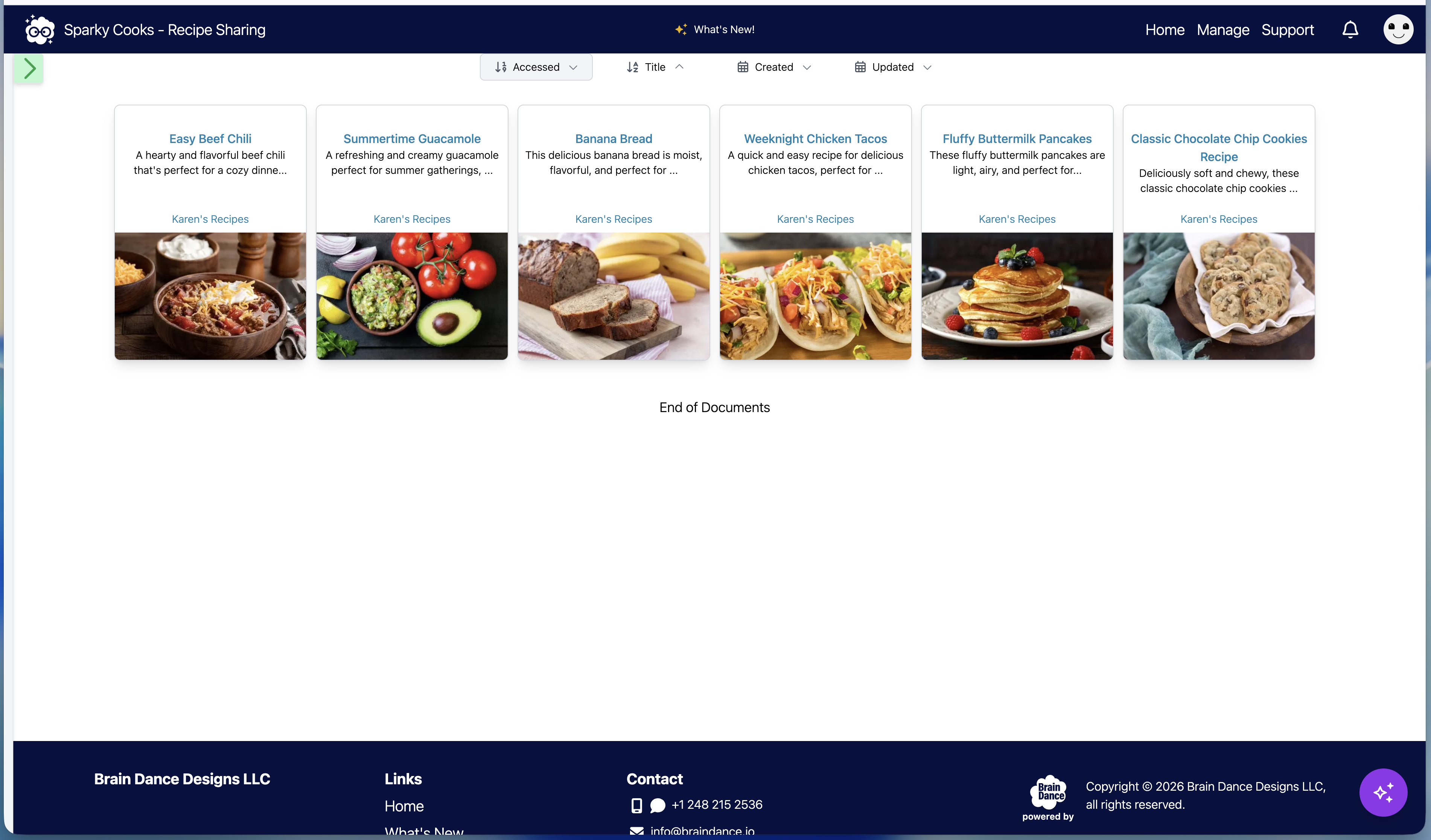
Sparky Cooks helps you create, store, organize, edit, share, and shop from recipes. The main workspace is the dashboard: recipe cards appear in the center, and the left sidebar lets you search, filter by folder, create recipes, create grocery lists, manage grocery lists, and open shared recipes.
It is designed for families and small groups where different people may view the same account recipe collection, while owners, admins, and folder owners control who can edit and organize recipes.
Basic ideas
- Recipes are the documents you create, save, edit, and share.
- The dashboard shows recipe cards for the selected folder, search, shared view, or all files view.
- The left sidebar is where you search by tags, switch folders, include or exclude subfolders, start new recipes, open the Cooking Assistant recipe flow, and start or manage grocery lists.
- Folders organize recipes. Folder owners can create recipes and subfolders inside folders they own.
- Photos are managed from Manage > Photos and can be attached to recipes from the editor.
- Sharing lets another account view a recipe or a folder. Shared recipes are view-only.
- Save As creates your own copy when you do not have edit access to a recipe.
- The Cooking Assistant is for creating, importing, or rewriting recipe content and asking cooking questions.
- Start Cooking organizes a saved recipe into Plan, Gather, Prep, and Cook, synchronizes progress across participating devices, and lets you capture Cooking Notes. Cook From Scratch can prepare a recipe draft when you do not begin with a saved recipe.
- Grocery lists can be generated from recipes, imported from text or CSV, edited directly, shared with other users, and used offline after syncing.
Main workflow
- Open the dashboard.
- Use the sidebar to choose a folder, search by tags, or show all files.
- Create a recipe with Create a Recipe, New Document, New from Template, Import, or Manage > Files.
- Save the recipe to a folder you are allowed to use.
- Add or manage photos from Manage > Photos, then attach them inside the editor.
- Open recipe cards to view recipes in the static recipe page.
- Use Start Cooking for a focused cooking guide, or choose Cook From Scratch and record what you do with Cooking Notes.
- Use Edit when you have edit access, or Save As when the recipe is read-only.
First setup checklist
- Use your Sparky Cooks signup or invite link.
- Create your password when prompted.
- Sign in and confirm that your folders appear.
- Create your first recipe with Adding Your First Recipe.
- Save the recipe to your default folder or another folder you own.
- Upload recipe photos from Manage > Photos if you want images in recipes.
- Add a passkey from Settings if you want Face ID, Touch ID, Windows Hello, or device-based sign-in.
Roles and access
Your role controls what you can see and change.
- Owners manage the account, subscription, users, and account-level settings.
- Admins help manage users, folders, and recipe organization inside an account.
- Folder owners can create, edit, move, and organize recipes and subfolders in folders they own.
- Regular users can view account recipes from the dashboard and use Save As when they need their own editable copy.
Some users can have more than one responsibility. For example, an owner can also own folders.
If something looks missing
If you do not see a menu, recipe action, folder, or sharing option that another user can see, your role or folder ownership may not include access to that area. Ask an account owner or admin to confirm your user setup.
For help finding menus and common actions, see Finding your way around.