
Finding Your Way Around
Learn the main menus and navigation patterns in Sparky Cooks.
Sparky Cooks is organized around the Cooking Assistant, dashboard, left sidebar, recipe pages, editor, Photos, Files, Lists, Sharing, Account, Profile, and Settings.
The options you see may be different from another user's options. Your account role, folder ownership, and sharing access control what appears in the app.
Cooking Assistant
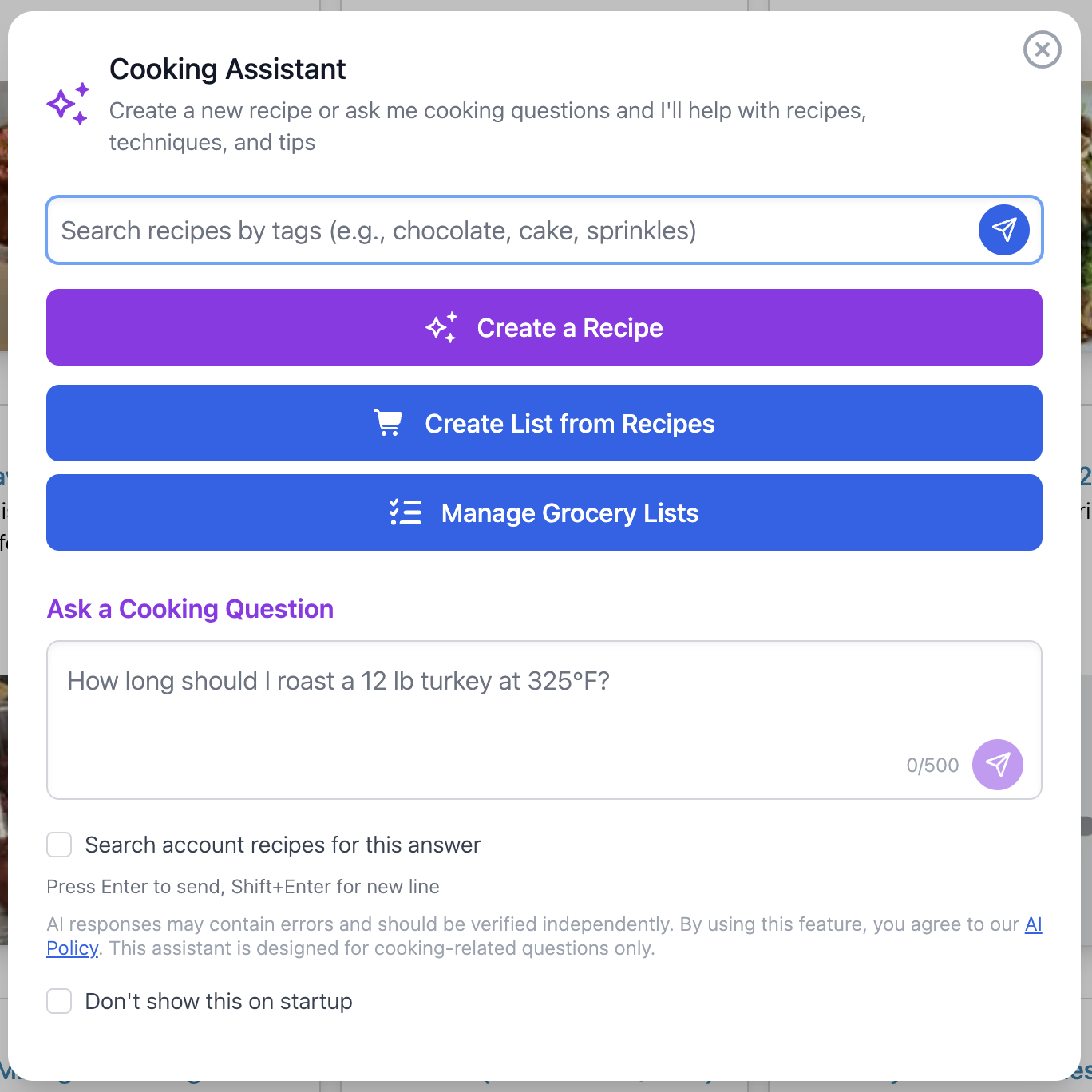
The Cooking Assistant is usually the first thing you see when Sparky Cooks starts. It opens automatically once per session unless you have turned that startup setting off.
Use the Cooking Assistant to:
- Ask cooking questions.
- Search account recipes while answering a cooking question.
- Start a recipe with Create a Recipe.
- Start dashboard recipe selection with Create List from Recipes.
- Open grocery lists with Manage Grocery Lists.
The purple floating button in the lower-right corner opens the Cooking Assistant any time you need it.
If you do not want the Cooking Assistant to open when Sparky Cooks starts, use Don't show this on startup inside the assistant or turn off Cooking Assistant Startup in Settings.
For details, see Cooking Assistant and Settings.
Dashboard
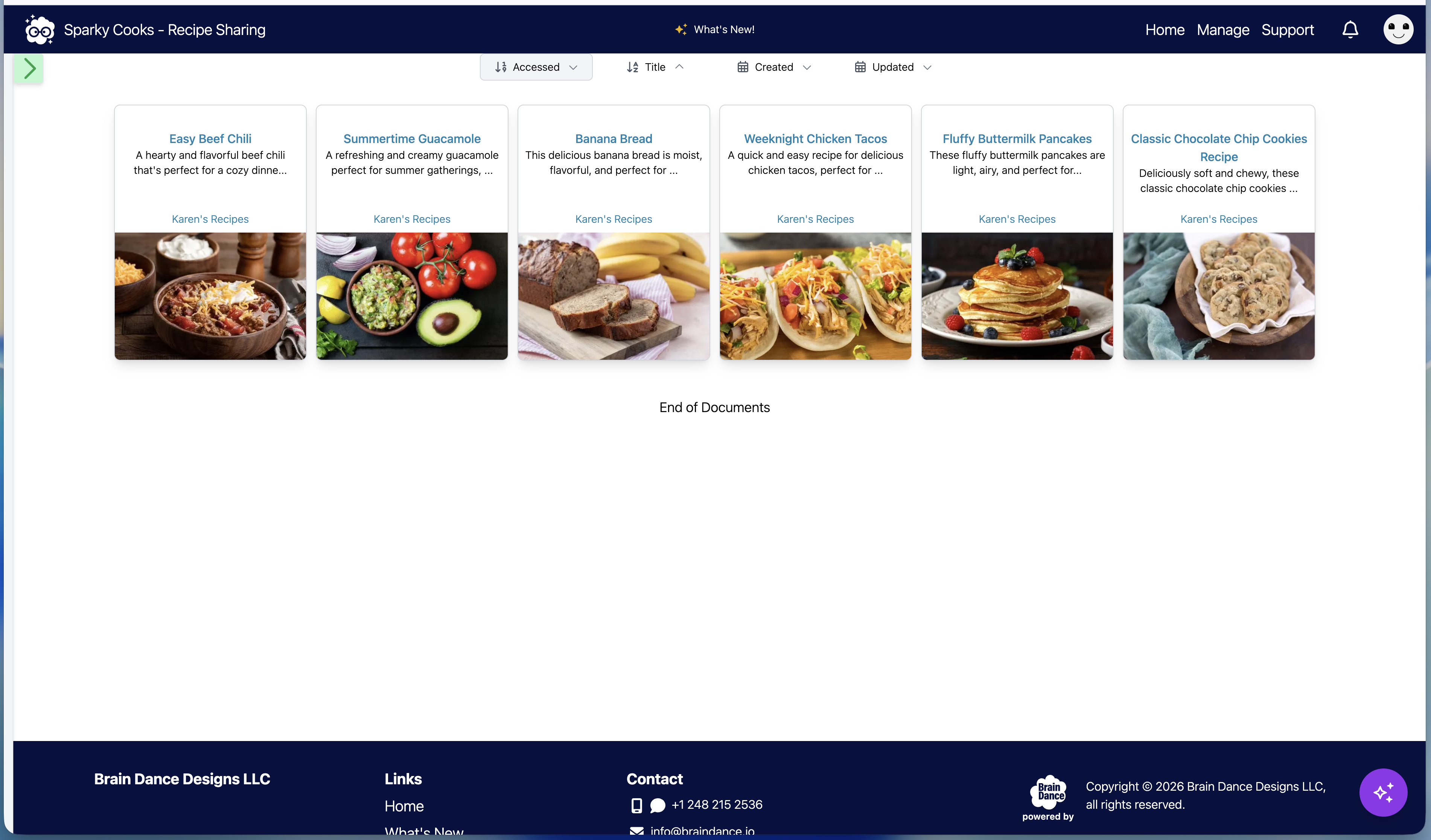
The dashboard is the main recipe and grocery-list workspace. Use the Account Recipes, Shared Recipes, and Lists tabs to choose what the main area shows.
Use the dashboard to:
- Open recipe cards.
- Switch between account recipes, shared recipes, and grocery lists.
- Browse the folder hierarchy from Folders.
- Search recipes and clear individual search terms.
- Sort recipes by title, date, updated date, created date, or access count.
- Load more recipes when there are more results.
- Select recipes for a grocery list when grocery list mode is active.
- Review and accept outstanding share offers from Shared Recipes.
Recipe cards open the static recipe page. If you have edit access, the page shows an edit option. If you only have view access, the recipe is read-only and you can use Save As from the editor to create your own editable copy.
Account Recipes and Shared Recipes remember their own folder selection. When no folder has been selected, Sparky Cooks uses your default folder where that folder applies.
For related workflows, see Recipes, Grocery Lists, and Organize Recipes.
Left Sidebar
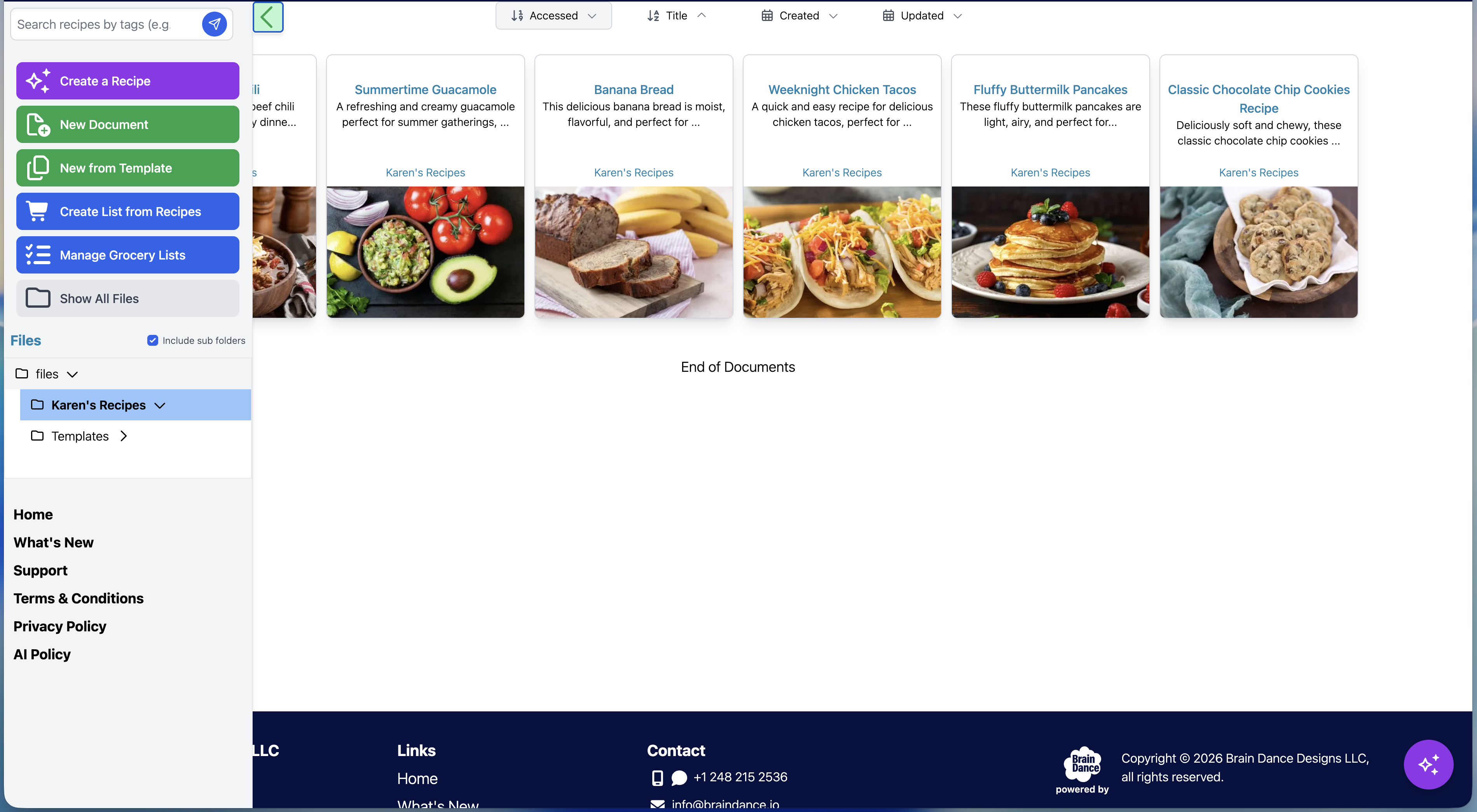
The left sidebar opens from the green tab on the left side of the dashboard.
Use the sidebar to:
- Search by tags.
- Choose whether to Search all folders.
- Create a recipe with New Document.
- Create a recipe from a template with New from Template.
- Start a recipe with Create a Recipe.
- Start grocery-list selection with Create List from Recipes.
- Open reusable grocery lists with Manage Grocery Lists.
- Show All Files.
- Browse your account folders.
- Browse shared folders under the shared section.
- Choose whether folder clicks include subfolders.
The account folder tree and shared folder tree are separate. If both trees contain a folder with the same name, Sparky Cooks tracks which tree you clicked so the dashboard shows the correct recipes.
The Folders button on the dashboard opens a compact folder explorer without requiring the full sidebar.
For folder behavior, see Folders and Sharing. For grocery-list selection, see Create From Recipes.
Recipe Pages
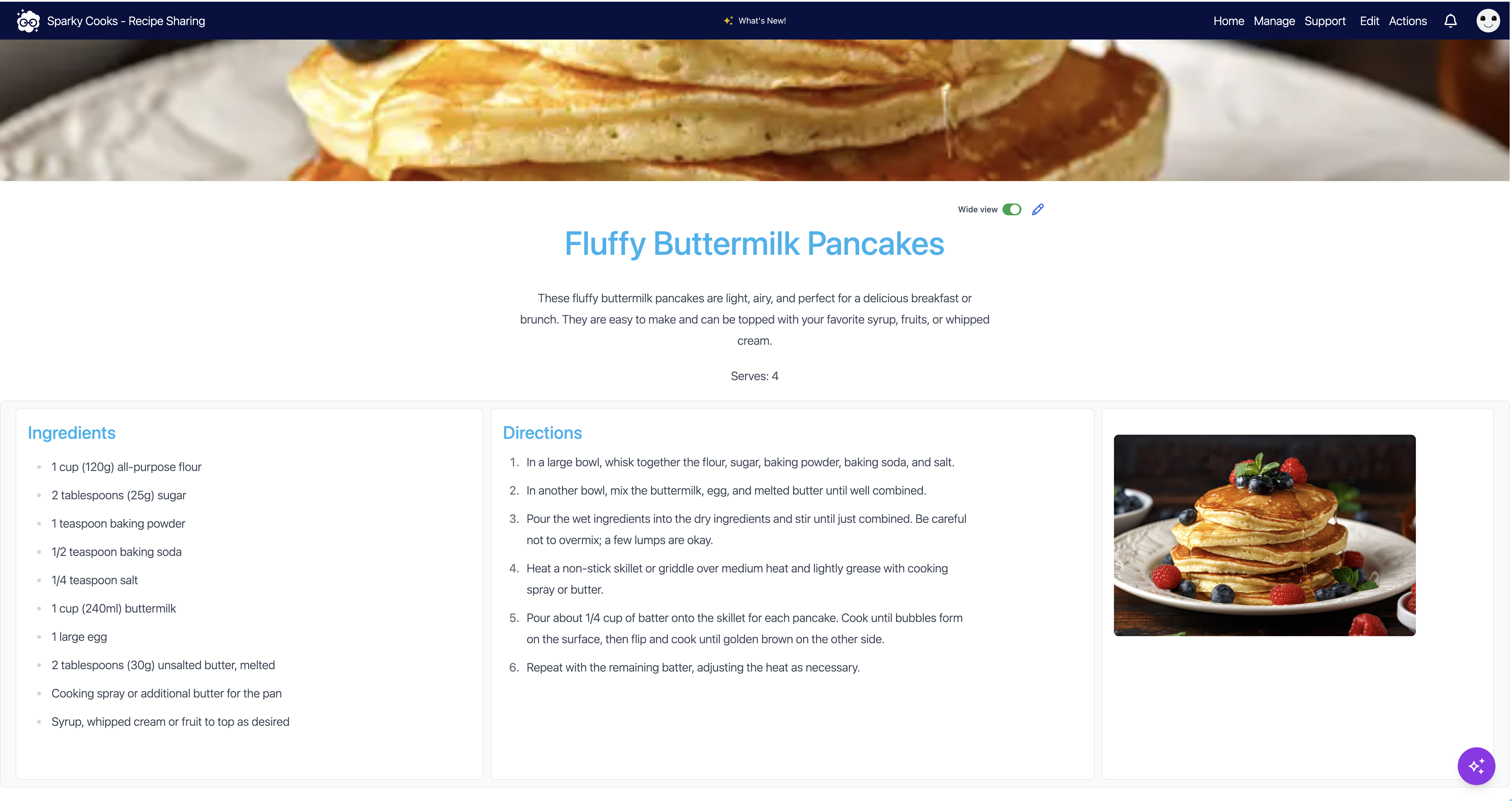
Recipe pages are optimized for reading. They show the main recipe image, title, description, ingredients, directions, pictures, other content, notes, tags, and comments.
Use Edit only when you have edit access. Shared recipes are view-only. Account recipes you do not own may also be view-only unless you are an owner, admin, or the owner of the folder that contains the recipe.
Comments can be added by users who can view the recipe. Tags can be viewed by read-only users, but only users with edit access can edit tags.
Use Start Cooking from a recipe page for a focused Plan, Gather, Prep, and Cook guide. Cooking Sessions can continue across the web, iPhone, iPad, and Apple TV. Inside the guide, use Note This for Cooking Notes or Ask a Cooking Question for immediate help. See Start Cooking.
For other recipe-page details, see Recipe Pages, Save As, and Public Recipe Links.
Editor
The editor is where recipes are created and changed. The top save bar includes actions such as:
- New
- Open
- Import
- Cooking Assistant formatting
- Save
- Save As
- Convert/Export
- Share
The file bar above the editor shows the recipe name and folder. Users with edit access can rename a recipe, move it to another allowed folder, or delete it.
For details, see Editing Recipes, Create a Recipe, and Format a Recipe.
Manage Menu
The top navigation Manage menu includes:
- Photos for recipe photo uploads and asset management.
- Files for recipe documents and folders.
- Lists for reusable grocery lists.
- Sharing for incoming and outgoing recipe or folder shares.
For details, see Manage.
Files
Files is the folder/file explorer for recipe documents. It uses the Sparky Cooks folder structure, not the photo asset library.
Use Files to:
- Browse folders you are allowed to manage.
- Create folders and subfolders.
- Create a new recipe in the selected folder.
- Open a recipe for editing.
- Delete empty folders or recipes.
- Share a selected recipe or folder.
Regular users only see folders they own. Owners and admins can manage more of the account depending on their role.
For details, see Manage Files.
Photos
Photos is where you upload and manage recipe photos. Photos can be attached to recipes from the editor. Photos is separate from Files: Photos is for images, and Files is for recipes and recipe folders.
For details, see Manage Photos and Recipe Photos.
Lists
Lists opens your grocery lists. You can create empty lists, open lists made
from recipes, import pasted text or a .txt or .csv file, edit list items,
duplicate lists, share lists, leave shared lists, and use recently synced lists
offline.
For details, see Manage Lists, Grocery Lists, and Import a Grocery List.
Sharing
The Sharing area shows incoming requests, recipes shared with you, and recipes or folders you have shared with others.
Individual recipe shares and folder shares are view-only. Folder shares include recipes added to the shared folder later.
Sharing also includes Public Links for recipes shared by public URL. Public links are read-only and can be copied, opened, refreshed, or deleted from Sharing.
For details, see Manage Sharing, Share a Recipe, and Share a Folder.
Account
Use Account for account details, subscription choices, account usage, and account deletion requests.
For details, see Accounts and Users and Plans and Billing.
Profile
Use Profile for your personal details, phone number, profile picture, and default folder preference.
For details, see Profile.
Settings
Use Settings to manage:
- Default dashboard folder.
- Passkeys.
- Password changes.
- Cooking Assistant startup behavior.
- Search all folders preference.
- In-app notifications.
- Email notifications for recipe, folder, and grocery-list shares.
For details, see Settings and Account Security.
Smaller Screens
On tablets and phones, the main navigation moves into a hamburger menu. Profile actions are shown directly in the smaller menu.
Need Help?
Email info@braindance.io.